Sunday, November 8, 2015

Lab 11 - Multivariate Regression, Diagnostics and Regression in ArcGIS

In this lab we learned to perform multivariate regression analysis and to work with more advanced diagnostics in ArcGIS. In the first two parts of the lab, we used Excel to perform regression analysis and diagnostics, including choosing the best model for a given dataset. In the last two parts, we performed a regression analysis to test what factors cause the high volume of 911 calls in Portland, OR. First I ran the Ordinary Least Squares tool to determine if population was the only factor affecting the 911 calls. The coefficient of the POP variable is 0.016, so although this shows a positive relationship in that an increase in population lead to an increase in 911 calls, the relationship is a weak one, as the coefficient is low. I expected a positive result in that I expected an increase in population to lead to an increase in 911 calls, but I expected the relationship to be stronger. Looking at the Jarque-Bera test, there is a very low probability that the residuals are normally distributed. This implies that the model is not properly specified and that more explanatory variables need to be included.
Now that we know that more variables are required for the model, I performed another analysis using 3 variables: Population, Low Education, and Distance to Urban Centers. This model shows that an increase in population or in lower levels of education lead to an increase in 911 calls, and a decrease in the distance from urban centers lead to an increase in 911 calls. The Jacque-Bera is not statistically significant, which means that the data is normally distributed and we are using the correct number of explanatory variables in the model. The VIF for all 3 explanatory variables is between 1 and 2, so the variables are not redundant (I’m not using too many variables). Based on the adjusted R-Squared value, 74% of the variation in the number of 911 calls can be explained by the changes in population, the lower education level, and the distance from urban centers. This is a good model, but how do I know it's the best?

Part D investigates how to determine the best model. This is done using the Exploratory Regression tool. This tool runs a regression analysis on all combinations of the explanatory variables selected, from which we can look at the statistics to determine the best model. In this case, the best model was determined from 4 explanatory variables: Jobs, Low Education, Distance to Urban Centers, and Alcohol. Three of the 4 variables show a positive relationship compared to 911 calls: jobs, low education, and alcohol. The distance to urban centers had a negative relationship compared to 911 calls. The performance of the model is determined partially by the adjusted R-squared value, which is basically a measure of how much of the variation of the dependent variable can be explained by changes in the explanatory variables. Also looked at are the VIF, of which values >7.5 mean that the variables are redundant. The Jacque-Bera statistic is basically a measure of whether or not the residuals are normally distributed. If they are, we have a properly specified model. Another way to tell this is by using the Spatial Correlation (Global Moran's I) tool, which shows a chart displaying whether there is clustering in the residuals or in the correlation is random. If there is clustering, that means that we need to include more variables in the analysis.

Tuesday, November 3, 2015

Module 9 - Unsupervised Classification

       In the first part of the lab, we learned to create a classified image in ArcMap from Landsat satellite imagery using the Iso Cluster tool. This allows us to set the number of classes, the number of iterations, the minimum class size, and the sample interval as desired. Using the output from the Iso Cluster tool, we then use the Maximum Likelihood Classification tool, using the original Landsat image as the input and the output from the Iso Cluster step as the signature file, and the new classified image is created. I assumed at this point we would be done with the unsupervised classification, but we now need to decide what the new classes represent. At this point, we are exploring a smaller image than the one we deal with later, with 2 vegetation classes, one urban, one cleared land, and one mixed urban/sand/barren/smoke.

    In the second part of the lab, we learn to use ERDAS Imagine to perform an unsupervised classification on imagery. I think it’s a little more complicated in Imagine than in ArcMap. First we perform the classification using the tool Unsupervised Classification in the Raster tab. For this exercise, we choose 50 total classes, 25 total iterations, and a convergence threshold of 0.950 (basically a 95% accuracy threshold), and we use true color to view the imagery. Here is where the lab got a little time-consuming. Now we have an image of 50 different classes and we want to get it down to 5 (same number as in exercise 1). Examining the attribute table displays the 50 classes, and we need to pick all 50 classes of pixel and reclassify that into one of our 5 classes (in this case, trees, grass, urban, mixed, and shadows). The lab suggests we start with the trees, selecting every pixel that is associated with a tree and change that to a dark green color and the class name of trees. So, I started with the trees, then moved to buildings and roads, then to shadows, and finally to grass and mixed areas. To me, the grass seemed somewhat brown, and there may be quite a bit of grass labeled as “mixed” in my map due to this. After all 50 categories were reclassified, I had to Recode the image by selecting the areas for each category and giving them all the same value (1, 2, 3, 4, or 5). As there were no pixels labeled as unclassified, I classified that as part of the “shadows” classification so that it would not display in the legend. Once this was done, I saved the image and Recoded it. I added class names and an area column in the attribute table. Finally, we were asked to calculate the area of the image and to identify permeable and impermeable surfaces as a percentage of the total on the image. Permeable surfaces allow water to percolate into the soil to filter out pollutants and recharge the water table. Impermeable surfaces are solid surfaces that don’t allow water to penetrate, forcing it to run off. So, I decided that the buildings/roads are 100% impermeable, the grass and trees are 100% permeable, and the Mixed and Shadows are 75% permeable and 25% impermeable, which I determined just from taking a look at the overall image visually. I feel this is a pretty good approximation of land use in and around the UWF campus based on the original imagery. The only thing is as much of the grass seemed more brown than green, I may have classified some of that as "mixed" instead of "grass", but overall this looks pretty good, Below is an image of my final map.


Sunday, November 1, 2015

Lab 10 - Introductory Statistics, Correlation and Bivariate Regression

This week's lab introduced us to introductory statistics, including correlation and bivariate regression. The first part of the lab introduces us to the calculation of simple descriptive statistics using Excel, including median, mean, and standard deviation. We carried out these calculations for 3 different data sets. The second part of the lab introduced us to correlation coefficients. First, we computed this and created a scatterplot of age vs. systolic blood pressure. We also computed the correlation between various demographics for the southeastern United States. I found a strong positive correlation between the % of adults diagnosed as obese and those diagnosed as diabetes, which is a well-known correlation. In Part C we learned to perform bivariate regression. I calculated the intercept and slope and performed a regression analysis using the data analysis tab in Excel. I learned to use the adjusted R-squared value and the p-value for the slope to determine if the relationship is significant. The adjusted R-squared value is basically how well the data fits a regression line. The p-value is a test of whether the null hypothesis that the coefficient is zero can be rejected; the null hypothesis being zero means that the relationship is not significant. A low p-value means that the null hypothesis can be rejected and the relationship between the two variables is significant.

Next we had a time series of annual precipitation for two stations. Over the period of 1950 to 2004 data was available for both stations, but data for station A was missing for the period 1931 to 1949. Our objective was to use regression analysis to estimate the missing precipitation values. I created a scatterplot for the two stations from 1950 to 2004, and performed a bivariate regression analysis using the Data Analysis tool in Excel. Using the slope and the intercept coefficient values, I was able to use the regression formula of y = ax + b, where a is the slope, b is the intercept, and y and x are the annual precipitation values of the two stations. I wanted to solve for x, so from the initial equation:
y - b = ax --> x = (y - b) / a; I used this equation in Excel to calculate the missing annual precipitation values for station A.

Obviously, working for the National Weather Service, we could not use these values as "official" values. The assumptions here are mainly that the missing data will fit the regression line exactly and that the relationship between the two stations was the same between 1931 and 1949, which most likely was not the case. However, it is most likely a reasonable approximation based on the rest of the data.

Tuesday, October 27, 2015

Lab 8 - Thermal and Multispectral Analysis

       In this lab, we learn to interpret radiant energy, to create composite multispectral imagery in both ERDAS Imagine and ArcMap. We also learn to change band combinations, and we further investigate adjusting imagery by adjusting breakpoints.
   This exercise demonstrates the basic principles of thermal energy and radiative properties, specifically the concepts associated with Wien’s Law and the Stefan-Boltzmann Law. The radiant energy is proportional to the fourth power of an object’s temperature, so the Sun emits more radiant energy than the Earth. We also see that the energy peak moves to shorter wavelengths as the temperature increases. This is why we call incoming solar radiation “shortwave” radiation and outgoing terrestrial radiation as “longwave” radiation.
.      The second exercise of the lab is a really good introduction to combining multiple layers into a single image file both by using Layer Stack in ERDAS and Composite Bands in Arcmap. As pointed out in the lab, it is much quicker and easier in Arcmap, but it’s good to know how to do this in ERDAS as well.
.      We also learned to analyze the image, both in panchromatic and multispectral bands, and manipulated the different spectral bands being displayed by manipulating the breakpoints to better distinguish certain features. We saw the difference between images taken in winter versus images taken in summer by looking at the thermal infrared band. It’s really interesting to see the diurnal pattern and the differences in specific heat capacity, with features that heat up quickly during the day also cooling quickly at night or in winter.
       The final portion of the lab tasked us with displaying different bands of multispectral imagery I decided to use the Pensacola composite image and to identify urban features. I still am learning how to adjust breakpoints, but this part gave me a lot of practice with it. I also used a lot of trial and error regarding which bands of the imagery would best display the feature that I wanted, which was rather tricky. Often, the urban areas were not displayed well; they were usually too light and although you could see the general area, you couldn’t really distinguish any features. Using the bands I chose, there is good contrast between the urban areas and adjacent areas, such as the water and the vegetation, and the urban areas are pretty well defined. Below is my image of Pensacola. The feature I wanted to identify was the urban areas, and they are clearly defined as the pink/lavender area, mainly west of the river that runs north-south through the middle of the image. For this image, I am displayed bands 1, 4, and 6. Band 1 shows blue wavelengths, and is often used to display man-made features. Adjusting the breakpoints of this band made the image clearer. Band 4, or near-IR, is often used to identify vegetation, but here after adjusting breakpoints to limit the amount of red in the image, the urban areas stood out. The band that completes the image is band 6, which is thermal IR. Urban areas are often warmer than surrounding areas, and that is the case here. Additionally, with the thermal IR layer, you can clearly see the fire in the far northeast portion of the image.


Sunday, October 25, 2015

Lab 9 - Accuracy of DEMs

The objective of this assignment was to calculate and analyze the vertical accuracy of a DEM, comparing it to known reference points. We also analyzed the effects of interpolation methods on DEM accuracy.

First, we are given a high resolution DEM obtained through LIDAR and reference elevation points collected on the ground. Field data was collected for 5 land cover types: a) bare earth and low grass, b) high grass, weeds, and crops, c) brush lands and low trees, d) fully forested, and e) urban areas. Cluster sampling was used, which are selected by a random or systematic method with a cluster of samples around each center. The main way to spot cluster sampling is that the distances between samples are smaller than the distance between clusters.


One of the best ways to determine the quality of a DEM is to take the DEM data and compare it to some form of reference data. Here we used elevation points obtained from the field. Using that data, we can determine the root mean square error (RMSE), the 68th percentile accuracy and the 95th percentile accuracy. Low values there generally means that the DEM data matches up well with the reference data and the values are accurate. You can also calculate the mean error to help determine the vertical bias. The reason RMSE does not work for this is that the elevation difference between the DEM and reference values are squared within the calculation, so the result is always positive; you cannot determine bias from RMSE. From my results, this is a very accurate DEM, with an overall RMSE of 0.276 meters and a 95% confidence level of 0.43 meters. It seems to be the most accurate over bare earth and low grass and less accurate over shrubland and low trees (perhaps it’s easier to distinguish between taller trees and the ground than shrubs and the ground). The vertical bias is also very small, with a combined vertical bias of 0.006 meters. The greatest vertical bias is a 0.16 m negative bias over urban areas and a positive 0.10 m bias over brush land and low trees. The LIDAR data seems to be an excellent model of elevation here, and it does exceptionally well over flatter (less “rough”) areas, such as bare earth or low grass.

Next we are provided a data layer contained 95% of the total points, which are used to create DEMs using 3 interpolation methods: IDW, Spline, and Kriging. The remaining 5% of the points are used as reference points. After creating the 3 DEMs, I exported the reference data to an Excel file and created new columns for the DEM data. After inputting the data to the Excel file, I performed the RMSE, 68th and 95th percentile, and mean error calculations for the three DEMs. Based on these calculations and assuming that I want the interpolation elevation values to be the closest to the reference points, the best interpolation technique for this particular data set is the IDW interpolation.

Statistic
IDW
Spline
Kriging
RMSE (m)
11.78366
17.78546
12.11856
95th
21.72756
20.04868
22.60116
68th
12.18899
9.888262
12.41265
ME (m)
1.73996
0.854330
2.121384

Overall, I learned a lot about the process of determining the vertical accuracy of DEMs using reference points. I initially had some difficulty figuring out how to determine the 68th and 95th percentile accuracies, but going back to a previous lab helped with that.

Sunday, October 18, 2015

Lab 8 - Surface Interpolation

In this lab we learned to use ArcMap to carry out and interpret various surface interpolation techniques, including Thiessen, IDW, and Spline.
First, I used given elevation points with interpolation techniques to create a DEM using the Spatial Analyst toolbar in ArcMap. The two techniques used were the IDW method and the Tension Spline method. I wanted to see the differences between the two methods so I used the Raster Calculator to subtract the values of the DEM spline grid from those from the DEM IDW grid. The map layout is seen below.


The areas in the brightest red shows areas where the results of the IDW technique show an elevation nearly 40 m greater than those of the Spline method, and the brightest green shows where the Spline method is nearly 40 m greater than the results of the IDW method. When looking at the values of the elevation points, which are about 425 m, I can see that some of the differences between the results approach 10% of the total elevation, which definitely should affect the DEM.

In the second part of the lab, I wanted to use various spatial interpolation techniques to determine which worked best on water quality data for Tampa Bay. Technique 1 was a non-spatial technique, where I used the Statistics tool on the data points. Technique 2 is Thiessen interpolation, which assigns each location the same value as the nearest point.  In ArcMap I used the Create Thiessen polygons tool, converted it to a raster, and used the Zonal Statistics tool to determine spatial statistics.I wouldn't use this technique in this case as I'm pretty sure water quality in unsampled locations is not necessarily the same as at the sampled locations; the data is not that densely sampled. Technique 3 was IDW and technique 4 was spline interpolation. As IDW estimates cell values by averaging the values of sample points in the neighborhood of each processing cell, this method works better with densely sampled data, and seemed to work well with the water quality data. Spline interpolation minimizes overall curvature and results in a smooth surface passing through the sample points, and this worked fairly well for the water quality data once it was modified. The spline technique originally resulted in abnormally high maximas and minima with negative values. Much of this was due to some data points that were very close in proximity to each other had largely different values, which caused abnormally high and low extremes nearby. Once this data was modified, the spline interpolation worked well. As far as which interpolation technique, to me it would depend partially on if I knew whether or not the maximum and minimum values were included in my sample points. If I knew they were or if the data was densely sampled, I would go with IDW interpolation as it is an exact interpolator and will not result in values outside the sampled maximum and minimum. Spline interpolation is not an exact interpolator, so if I'm not sure the maximum and minimum have been sampled or if the data is not densely sampled, I would consider using spline interpolation.

Tuesday, October 13, 2015

Lab 6 - Image Enhancement

In this lab, we learned three main concepts. First, we learned to download and import satellite imagery into ERDAS Imagine and ArcMap. We also learned how to perform spatial enhancements using both of the mentioned software programs, and we learned to use Imagine to perform Fourier transformations.

First, we learned to obtain satellite imagery and how the files are named on the glovis.usgs.gov website. It’s pretty straightforward, with the names following a Sensor type, Path and Row number, and date in the form of year and the Julian date. Of course, other sources of data may have different methods of naming the data files.

         We also learned how to unzip these specific types of files, which are downloaded in a *.tar.gz format. I use this type of file quite often, and this is fairly simple to unzip, you just use the 7-Zip software on the file twice.

    The second part of the lab involved learning about different types of spatial enhancement in both Imagine and ArcGIS. I found this really interesting because it gave me a better understanding of what exactly occurs when you use a high or low pass filter. It's used a lot when performing research in meteorology, so I already had a basic understanding of it, but this lab explains it well and is very useful, especially seeing the calculations being performed when using the filters.
     We learned about high pass filters, which allow high frequency data (data that changes rapidly from pixel to pixel) to pass through, but suppresses low frequency date (data that doesn't change much from pixel to pixel). This has the effect of enhancing edges or discrete features, or to sharpen an image. We also learned about low pass filters, which allow low frequency data but suppress high frequency data, which has the effect of blurring or "smoothing" an image. I also learned how to use the Focal Statistics tool in ArcMap, specifically the "Mean" and "Range" filters. The Mean filter is a low pass filter, but it uses as 7x7 kernel instead of a 3x3 kernel, which results in each new cell being the average of a larger area, so the result is a more generalized image. I immediately thought in terms of resolution -- the results from the 7x7 kernel having a more coarse resolution than those from the 3x3 kernel. The Range statistic is similar to Edge Detect, It gives each new cell a value showing the difference in brightness between neighboring pixels, which is called spatial frequency. So, if you have a border or an edge, the spatial frequency will be high and it will show up brighter on imagery. The interiors of an area will be darker as they will have a lower spatial frequency due to the similarity of the surrounding pixels.
    
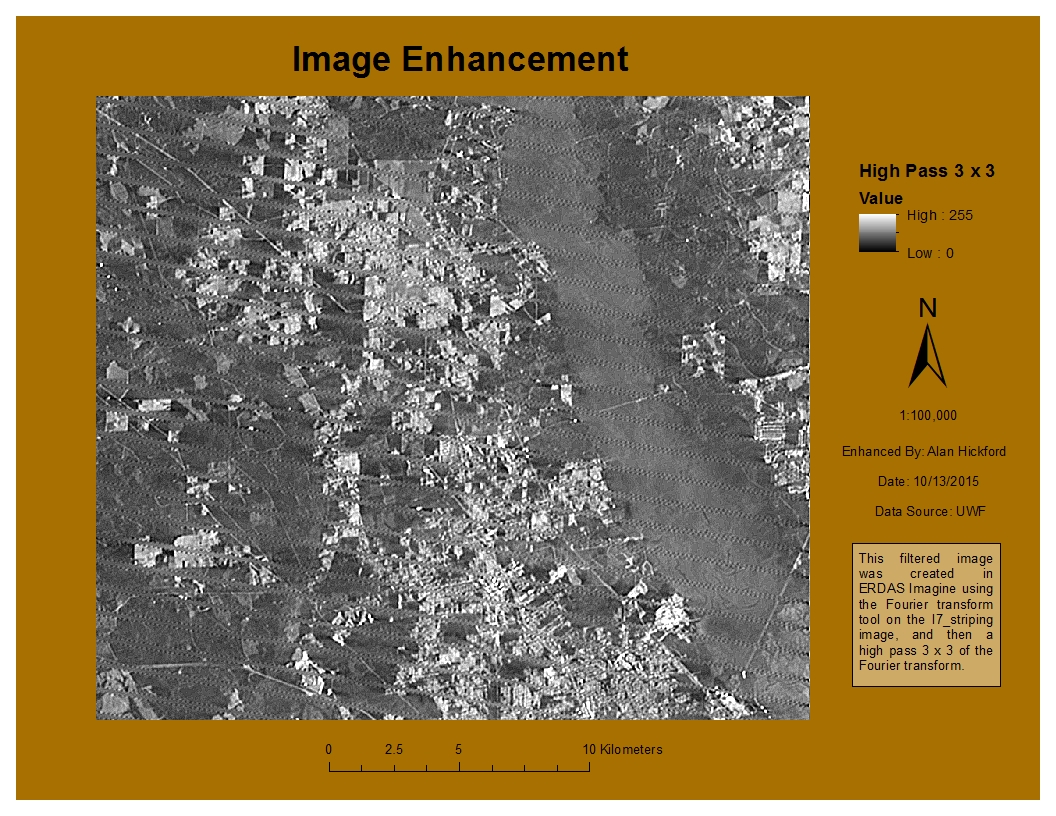
      The third part was the main focus of the lab. We were to take an image and perform an enhancement on it that reduced the effect of the striping in the image, but also retain most of the detail. I performed a Fourier transform on the image using Imagine, which reduced some of the striping. I then used a 3x3 Sharpen kernel on the image to sharpen the features. I really enjoyed working with the Fourier transform tool. I have seen it used in statistics and research, but never actually worked with it before (outside of mathematics). It wasn't too complicated to perform the transformation with Imagine, and I used it in my final enhancement image. I created multiple enhancements using various techniques as I tried to determine which worked best for this image. I started with a 5x5 low pass enhancement, which made the image quite a bit more blurry as expected. I tried a Sobel 3x3 edge enhancement, which did leave most of the detail intact but also left the striping. I tried a 3x3 horizontal kernel, which distorted the image and made it grainy. I also tried a 5x5 Summary, which wasn't too bad; again, it left the detail but also the striping. What I finally did was to use a Fourier transform but with a larger circle. The smaller the circle here, the more pronounced the low pass filter will be, and the image would be blurry. A larger circle mitigated that effect. From here, I used a 3x3 high pass filter, which gave a detailed image while also reducing the effect the striping has on the image. From there, I added the image into ArcMap and created my map. I wanted to show the image at 1:100,000 scale so that the effects of the enhancements can be seen.